

📑 On this page
Your laptop screen significantly influences your computing experience, affecting everything from visual comfort to overall productivity. Whether you're working, gaming, or simply streaming your favorite shows, selecting the right laptop screen can enhance your enjoyment and efficiency. However, understanding the nuances between different screen types and knowing how to tackle common screen issues can be daunting for many users.
At Esmond Service Centre, we've spent years repairing, replacing, and advising on laptop screens for countless satisfied customers in Singapore. Our expertise ensures that we know exactly what matters most when it comes to laptop screens—be it for high-end graphic designers or casual users. This comprehensive article will guide you through the types of laptop screens available, how to select the best screen for your needs, common laptop screen problems, and solutions. By the end, you'll feel confident in maintaining, repairing, or upgrading your laptop screen effectively.
What Are the Different Types of Laptop Screen?
LCD (Liquid Crystal Display) is the most common screen technology in laptops. Virtually all modern laptop LCDs use LED backlighting, which is why you often see “LED display” advertised – it’s essentially an LCD screen lit by LEDs (as opposed to older fluorescent backlights). LED backlighting allows screens to be thinner, brighter, and more power-efficient than older LCDs.
Subtypes of LCD panels:
| LCD Panel Type | Description |
|---|---|
| TN (Twisted Nematic) | Budget-friendly, fast response time (good for gaming). Poor color accuracy and narrow viewing angles. Mostly used in entry-level or speed-focused laptops. |
| IPS (In-Plane Switching) | Excellent color reproduction and wide viewing angles. Ideal for creative work, office tasks, casual gaming. Now the standard in mid-to-high-end laptops. |
| VA (Vertical Alignment) | Higher contrast with deeper blacks (great for movies). Viewing angles and speed between TN and IPS. Rare in laptops, more common in monitors. |
Advantages of LCD (LED-backlit) overall: Widespread and affordable – most laptops on the market use an IPS LCD by default. No risk of “burn-in” (permanent image retention) that other technologies like OLED can suffer. LED backlighting provides decent brightness while keeping power consumption reasonable. Good IPS LCDs offer accurate colors (often covering 95-100% of sRGB color gamut) and are suitable for the majority of tasks.
Disadvantages of LCD: Because an LCD uses an always-on backlight, it cannot achieve true deep blacks – even “black” pixels leak a bit of light, making dark scenes grayish compared to an OLED. There’s also the possibility of backlight bleed or glow (light leaking at the edges or corners). Standard LCDs have a fixed contrast ratio and can’t individually turn off pixels (though local dimming in advanced models or Mini-LED backlights, discussed later, attempt to improve this). TN-based LCDs have poor viewing angles and color, though IPS solved much of that. In gaming, some older or lower-quality LCDs may exhibit motion blur due to slower response times (the pixels transitioning between colors).
Real-world usage: A good IPS LCD is great for everyday work (spreadsheets, coding, web browsing) because of its clarity and lack of drastic drawbacks. It’s also sufficient for casual content creation and streaming video. For competitive gaming, standard IPS 60Hz might feel a bit lacking – that’s where high-refresh IPS or TN panels come in. Professional designers/photographers might want an IPS LCD with a wide color gamut (some premium IPS screens cover Adobe RGB or DCI-P3 gamuts) if OLED is not available or desired. In short, an IPS LCD is the safe, “all-purpose” choice for most users, while TN LCDs cater to niche cases where speed trumps image quality.
OLED Screens
OLED (Organic Light-Emitting Diode) laptop screens use self-emissive pixels that each produce their own light and switch completely off for true black, delivering essentially infinite contrast and vivid colour. Many OLED panels cover 100% of the DCI-P3 colour space and support 90Hz–240Hz refresh rates, though they cost more than LCDs and risk burn-in from static images.
| Aspect | Details |
|---|---|
| Technology | Self-emissive pixels (no backlight), enabling true blacks and infinite contrast. |
| Image Quality | Exceptional color accuracy, deep blacks, vivid contrast; covers 100% DCI-P3 in many models. |
| Performance | Fast pixel response, minimal motion blur, supports high refresh rates (90Hz–240Hz). |
| Design Benefit | Thinner, lighter panels; power-efficient with dark content (e.g., dark mode, movies). |
| Best For | Media consumption, creative work (photo/video editing), visually rich gaming. |
| Burn-in Risk | Long-term static images can cause ghosting; mitigated with software tricks (pixel shifting, dark mode). |
| Battery Life | Efficient for dark scenes; consumes more power with bright/white content. |
| Cost | More expensive than LCDs; mostly found in premium or upgraded laptop models. |
| Office Use | Crisp visuals for text/UI; burn-in and glossy finish may affect long-term comfort in static workflows. |
| Real-World Fit | Ideal for creatives, gamers, and visual content lovers. Less necessary for pure document-based work. |
OLED laptop screens offer eye-popping image quality with deeper blacks and richer colors than any LCD. Each pixel emits its own light, allowing for infinite contrast, vibrant visuals, and faster pixel response—ideal for movies, creative work, and gaming. Many OLED laptops support high refresh rates (90Hz–240Hz) with minimal motion blur. They're also thinner and can be more power-efficient in dark mode or during media playback.
However, OLED laptop screens have drawbacks: risk of burn-in from static images, higher power usage with bright content (like white documents), and higher cost. Battery life may be shorter during office tasks, and reflections from glossy screens can be an issue in bright environments.
Best for media enthusiasts, creatives, and gamers who value stunning visuals. For text-heavy tasks or pure office use, a good IPS LCD may be more practical and budget-friendly.
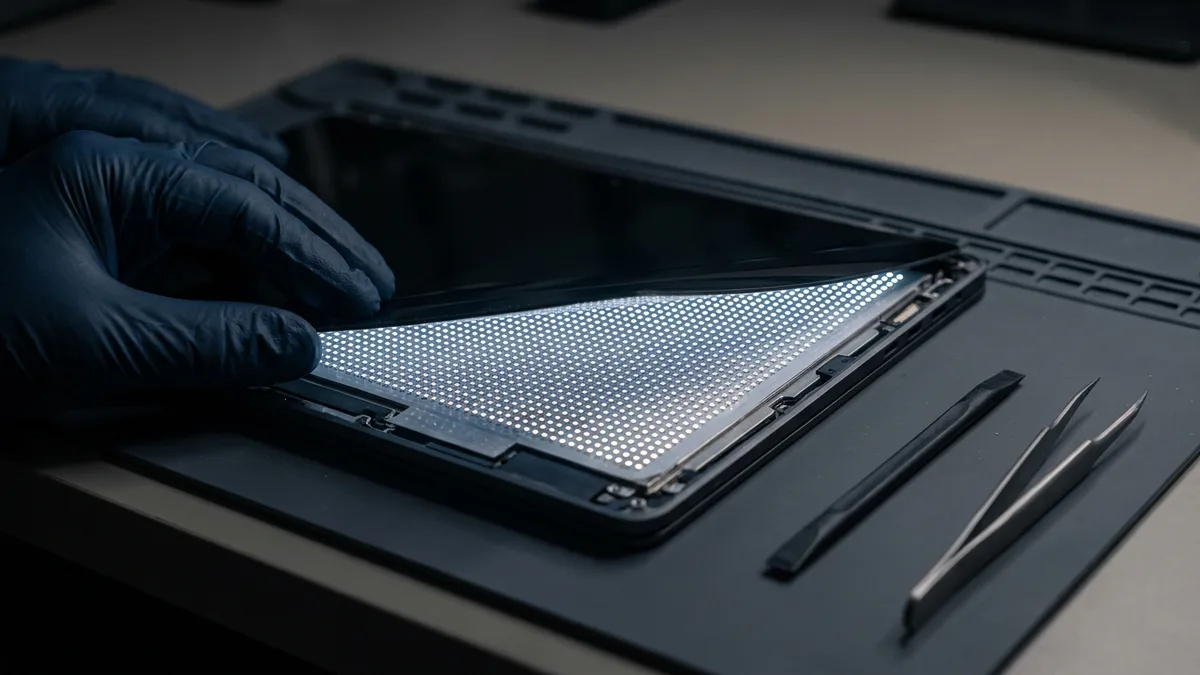
Mini-LED Screens: The Third Option
Mini-LED is the option most buying guides skip, and it is the one most likely to confuse you in a shop. It is not a panel technology at all — it is a backlight. A Mini-LED screen is still an LCD, usually an IPS one, but instead of a handful of LEDs lighting the whole panel from its edges, it uses thousands of far smaller LEDs arranged in independently controlled dimming zones behind the glass. Switch the zones behind a dark part of the picture down and you recover much of OLED’s deep blacks and HDR brightness — without OLED’s burn-in risk, because the pixels themselves are not the light source.
The trade-off is real, and you can see it on a single machine. MSI sells its Titan 18 HX AI with three display choices on the same laptop: QHD+ at 240Hz, UHD+ at 220Hz, or UHD+ Mini-LED at 120Hz (MSI’s own specification page, read 17 August 2026). On that laptop, choosing Mini-LED costs you half the refresh rate. Mini-LED also adds thickness and cost, and against a black background a small bright object can show a faint halo, because a dimming zone is still very large compared with a pixel. Choose Mini-LED for HDR brightness with no burn-in worry, OLED for perfect blacks and the fastest response, and a good IPS LCD if neither is worth the extra money to you.
Touchscreens in Laptops
A touchscreen laptop lets you interact with the display using your fingers or a stylus, just like a tablet or phone. It’s not a different screen tech—it usually uses a standard IPS LCD or OLED panel with a touch-sensitive digitizer layer added on top. We include it here because it meaningfully affects the user experience.
Where are touchscreens found?
Primarily in 2-in-1 convertibles, tablets, and some premium ultrabooks. Many laptops that can fold or detach into tablet mode include a touchscreen by default. Others, like higher-end Windows clamshells, may offer touch as an option. Apple does not sell a touchscreen MacBook. We checked on 17 August 2026: Apple’s own iPad Pro page markets it as “an intuitive touch‑first experience” and describes Apple Pencil working on the display, while Apple’s MacBook Pro page mentions neither touch input nor Apple Pencil anywhere. So if you want touch on a laptop, you are choosing a Windows machine.
| Advantages of Touchscreens | Disadvantages of Touchscreens |
|---|---|
| Direct interaction: Tap, swipe, and zoom familiar for smartphone / tablet users. | Glossy surfaces: Reflective screens prone to glare in bright environments. |
| Stylus support: Ideal for sketching, note-taking, and creative work. | Slightly heavier/thicker: Extra digitizer layer adds minor bulk and may dim clarity. |
| Great for presentations / classrooms: Enables annotations and interactive teaching. | Lower battery life: Constant touch scanning uses more power. |
| Convenient navigation: Faster for quick taps and casual scrolling. | Added cost: Touch options usually come at a premium. |
Should You Get a Touchscreen?
Choose a touchscreen laptop if:
- You plan to use it in tablet mode or draw/write with a pen.
- You want intuitive controls for media, web browsing, or presentations.
- You're in education, design, or art, where stylus input adds real value.
Skip touch if:
- You’ll mainly use the keyboard and mouse.
- You prefer a matte display (touch is almost always glossy).
- You want maximum battery life or lowest price.
Final advice: Touchscreens add real versatility, especially on 2-in-1s. For some users, they’re essential. For others, they’re a nice-to-have or unnecessary feature. It all depends on your workflow and how you use your laptop.
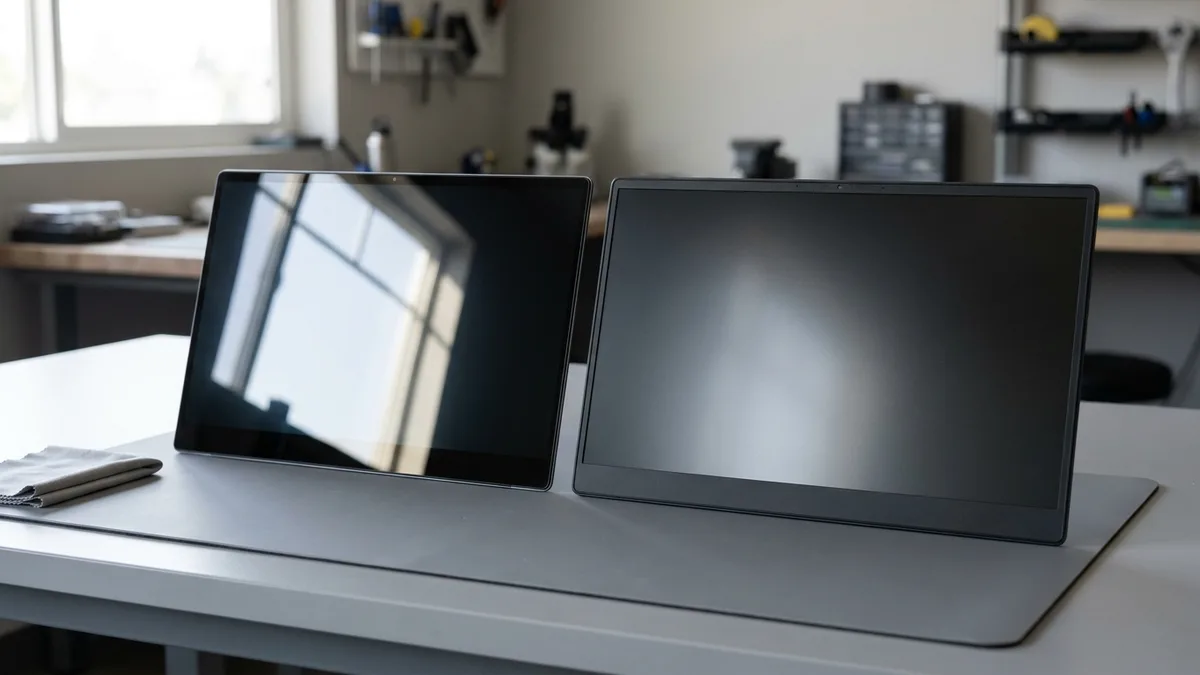
Screen Finishes: Glossy vs. Matte (Anti-Glare)
Aside from the internal technology, laptop screens come with either a glossy or matte surface finish. This aspect can significantly affect your viewing comfort, especially under different lighting conditions.
| Surface Type | Details |
|---|---|
| Glossy Screen | Has a shiny, glass-like surface. Produces vibrant colors and deeper blacks—great for movies, photos, and media work. Common in touchscreens and OLED laptop screens. However, highly reflective in bright environments, causing glare and eye strain. Some have anti-reflective (AR) coatings to reduce reflections slightly. |
| Matte (Anti-Glare) Screen | Has a diffused surface that scatters light, minimizing reflections. Ideal for bright rooms, outdoor use, and long work hours. Easier on the eyes. Preferred in business laptops and many gaming models. Slight downside: colors may appear less vibrant and the screen can feel slightly grainy. |
| Anti-Glare = Matte | Terms like “anti-glare,” “non-glossy,” and “matte” typically mean the same thing. Best suited for variable lighting or outdoor use. |
| Choosing Tip | For visual quality in dim settings → Glossy. For readability and comfort in bright or mixed environments → Matte. |
Choosing between them: It depends on your typical environment and preference. If you often use your laptop outdoors or in sunny rooms, matte is almost necessary; a glossy screen in daylight is like a black mirror – very hard to use. For office work under overhead lights, matte is also much more comfortable as it prevents bright light spots on your screen. On the other hand, if you mostly use your laptop in dimmer settings or for entertainment, you might enjoy the richer image of a glossy screen. People who do a lot of photo or video work sometimes prefer glossy because they can see subtle color differences more clearly (assuming they can control lighting to avoid reflections).
A common compromise in design laptops and monitors is to use a matte screen but with high quality panel and perhaps a mild coating so that colors still look great but glare is reduced. It’s worth noting that if you get a touchscreen, as mentioned, you’re likely getting a glossy surface by default. Some newer technologies (like etched glass) are trying to provide a matte-like touch surface (for example, Microsoft’s Surface Pro has a type of coating to slightly reduce reflections), but it’s never as matte as a true non-touch screen.
Real-world example: If you’re a student who might sit both indoors under fluorescent lights and outside on campus, a matte screen will let you see the screen in both situations. If you’re a movie buff who mainly watches in a dark room, a glossy HDR OLED screen will give you an amazing picture. There’s no inherent “better” – it’s about use case. Beginners should just remember: glossy = vivid but reflective, matte = subdued but usable anywhere.
Can You Upgrade a Laptop Screen from LCD to OLED?
You might wonder: if OLED and other new screen tech are so great, can you buy a laptop with a regular LCD now and upgrade it to, say, an OLED panel later when they become cheaper? In desktop monitors, you can always replace your monitor with a new one – but laptops are different. Upgrading a laptop’s built-in screen to a completely different technology (for example, swapping an LCD panel for an OLED panel) is extremely difficult and rarely feasible for the average user.
Technical barriers: Laptop displays aren’t universal; each model is engineered with a specific screen type and connector. An OLED panel often uses different signalling and power requirements than an LCD panel. The connector (typically eDP – embedded DisplayPort – in modern laptops) might physically fit, but the pin assignments and voltages could differ. For instance, some OLED panels need extra pins for powering the emissive matrix or different voltage levels that the laptop’s motherboard isn’t wired to provide. There’s also the issue of firmware: the laptop’s BIOS or embedded controller is configured to recognize and drive the original screen. It may not know how to initialize or control an OLED properly (timings, brightness control via PWM vs analog, etc.).
Physical fit: Laptop screens come in very precise sizes and mounting designs. An OLED panel of the “same” size might actually have a different thickness or screw placement. If the connector is in a slightly different spot, the existing display cable might not reach or align (meaning you’d need a custom cable). OLED panels are often thinner and flexier, which could mean the mounting brackets in the lid don’t secure them well. Conversely, if an OLED panel had a slightly larger bezel footprint, it might not physically fit into the laptop’s lid without modification.
Power and risks: If somehow the connector and fit are managed, powering an OLED can be a risk. The power draw characteristics differ; sending incorrect voltage could fry the panel or the laptop’s motherboard power circuits. There have been enthusiasts who try such upgrades and end up with a shorted board because a pin wasn’t compatible. Unlike swapping one IPS LCD for another (which is sometimes possible within the same model line or generation), moving to OLED is a different ballgame – it’s not a plug-and-play scenario.
Because of these issues, experts strongly advise that if you want an OLED laptop, buy one that comes with OLED from the factory. Manufacturers that offer the same laptop model in both LCD and OLED versions (a few high-end models do) will have designed the internals to support both. In theory, if you had one of those, you might swap the panel with some effort, but even then it’s not guaranteed. For example, the Dell XPS 15 had LCD and OLED options; some tinkerers were able to swap, but it required also swapping the display cable and sometimes the lid assembly. And if a laptop never offered OLED, it’s almost certain you cannot retrofit one easily.
To put it simply: laptop screen upgrades are limited to swapping within the same technology (and size/connector family). You might upgrade a dull 1080p TN LCD in a budget laptop to a 1080p IPS LCD if a compatible panel exists – that’s often doable and a popular mod. But upgrading from LCD to OLED is, in nearly all cases, not practical or possible for average users. The technologies are just too different in how they interface with the laptop hardware. As one guide succinctly puts it: “Upgrading your laptop’s screen from LCD or IPS to OLED is, for the vast majority of users and devices, not practical. The differences in technology, connectors, firmware, and power requirements make such a swap extremely challenging, unless your laptop was specifically designed to support both panel types”. Even on models with both variants, success isn’t assured and the risk of damage is high.
So, when shopping, treat the screen as a non-upgradable component (like you would the CPU or GPU on most laptops). Choose a laptop that already has the type of display you want or need. Or, consider using a good external monitor for upgrades – for instance, if your laptop’s built-in screen is lackluster but you use it mostly at a desk, you can attach an external OLED monitor to get those benefits externally. But internally, aside from replacing a broken screen with the same type, plan that what you buy is what you’re going to have.
Understanding Screen Specifications: Resolution, Refresh Rate, and Color in Plain Terms
| Feature | Details |
|---|---|
| Resolution | Determines screen sharpness (pixels = width × height). - HD (1366×768): Basic, not sharp above 13". - Full HD / 1080p (1920×1080): Most common, reliable choice. - QHD / 2.5K (2560×1440 or 1600): Sharp, power-efficient sweet spot. - 4K UHD (3840×2160): Ultra-detailed, ideal for creators but uses more power. Note: Higher resolution = finer detail, but may reduce battery life and require UI scaling. |
| Refresh Rate (Hz) | How many times per second the screen refreshes. - 60Hz: Standard, good for everyday tasks. - 120Hz / 144Hz / 240Hz+: Smoother motion, great for gaming and UI fluidity. Higher rates = smoother experience but slightly more power usage. |
| Color Gamut & Accuracy | Indicates how many and how accurately colors are displayed. - sRGB: Standard for web; aim for 100%. - DCI-P3: Wider, for HDR and video editing. - Adobe RGB: Best for print work. Creators should seek 90–100% DCI-P3/Adobe RGB. OLED often offers widest gamut. |
| Brightness & HDR | Measured in nits (cd/m²). - 250–300 nits: Fine for indoor use. - 400–500+ nits: Great for bright rooms or near windows. - 600–1000+ nits: Required for premium HDR (HDR600/1000). OLED and mini-LED panels often meet HDR needs. Brightness impacts outdoor use and battery. |
| Eye Comfort Features | Enhancements for prolonged viewing. - DC Dimming: Reduces flicker at low brightness. - Low Blue Light: Eases eye strain and improves sleep. Nice-to-have bonuses for long work sessions, especially in dim lighting. |
Tips for Choosing Your Ideal Laptop Screen in 2026
Laptop screen technology has evolved significantly, offering more choices—and more complexity—than ever before. To simplify your decision, remember these key insights:
- IPS LCD screens are versatile and cost-effective, making them excellent all-rounders for general use, casual gaming, and creative tasks.
- OLED screens offer unmatched visuals, providing deep blacks, vibrant colors, and outstanding viewing angles—perfect for movie enthusiasts, creatives, and gamers. However, they come at a higher cost and require mindful use to prevent burn-in.
- Touchscreens enhance versatility, allowing intuitive navigation and pen input. They're excellent for tablet-like usage but typically have more glare and slightly reduced battery life.
- Matte vs. Glossy: Matte screens reduce reflections, ideal for work and outdoor use, while glossy screens boost image clarity and color saturation, ideal for controlled lighting environments and media consumption.
Remember, laptop screens typically aren't upgradeable across different technologies—switching from LCD to OLED isn't feasible due to hardware differences. It's crucial to select the right screen from the start.
As you choose, consider resolutions (1080p or higher for clarity), refresh rates (90Hz+ for smoother visuals), and color accuracy (100% sRGB or higher for vividness). Equipped with these insights, you're ready to pick the perfect laptop screen tailored to your needs, enhancing your productivity and enjoyment in 2026 and beyond.
Which Screen Does Your Laptop Have?
Before you spend anything — on a new laptop or on a repair — it is worth knowing what is actually in front of you. Panel type is almost never printed on the machine, but you can establish it in about five minutes:
- Find the exact model number. It is on the sticker underneath the laptop, and usually in the BIOS too. It is not the marketing name: Inspiron 15 is not a model number, Inspiron 15 3520 is. Our guide to finding your laptop serial and model number walks through it.
- Look that exact model up on the manufacturer’s own specification page. Panel type (IPS, TN, VA, OLED), resolution, refresh rate and brightness in nits are all listed there. A retailer’s listing is often vague about the panel; the maker’s own page is not.
- Check the refresh rate your laptop is actually running. Plenty of laptops with a 120Hz or 144Hz screen are shipped set to 60Hz, so you paid for smoothness you are not getting. It sits under the advanced display settings.
- Judge the finish in daylight. Switch the screen off and hold it up to a window. A hard, mirror-like reflection means glossy; a soft, spread-out haze means matte. That takes seconds and no spec sheet tells you how it will feel to live with.
- Decide whether you have a preference problem or a fault. A screen you find dim, dull or reflective is a preference problem, and a replacement panel will not change it. A screen with cracks, lines, dead patches, flicker or no backlight is a fault — and a fault is repairable.
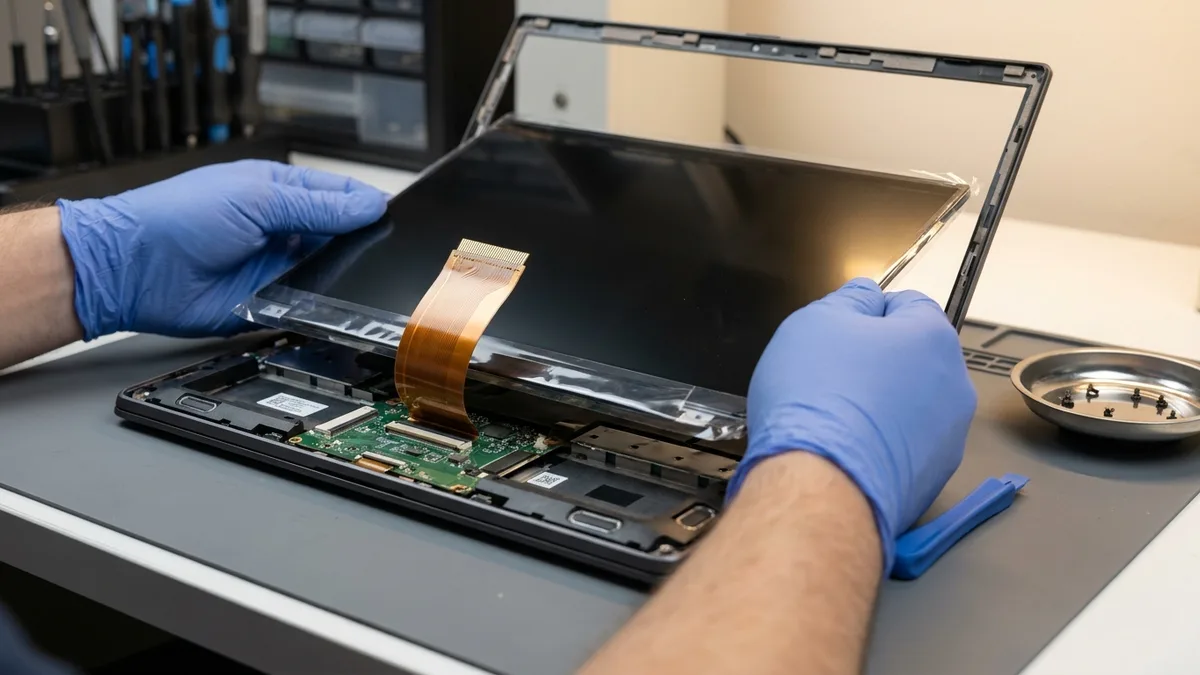
When to Stop — and When a New Screen Is the Answer
Here is when to stop — and it is before you spend anything. If your screen has a crack, a spreading dark blot, coloured lines, a dead patch, or an image you can only make out with a torch held against it, then stop and do not buy a replacement laptop: the machine itself is very probably fine. The panel is a separate, replaceable part, and on most laptops it is one of the cheapest major repairs there is. Bring it in and we will tell you which of the two you are looking at, before you spend anything.
And here is the part that costs us a sale, so it is worth saying plainly: a new screen will not fix everything. It will fix cracks, dead and stuck pixels, backlight failure, lines and spreading blots, and flicker caused by the panel or its ribbon cable. It will not give you OLED, and it cannot raise your resolution or refresh rate beyond what your laptop’s board was built to drive — as the upgrade section above explains, swapping a TN panel for an IPS one of the same size and resolution is sometimes possible on the same model, but that is a like-for-like part swap, not a jump to a different screen technology. A new panel also will not fix flicker or artefacts coming from the graphics chip or the motherboard, and it cannot help a screen whose finish you simply dislike. If the fault is on the board rather than the panel, a new screen changes nothing, which is exactly why that gets checked before anyone quotes you.
If it is the panel, Esmond Service Centre replaces laptop screens from S$186, typically in 1–2 hours, across every major brand — the per-brand list is on our laptop screen replacement page. Diagnosis is free and there is no obligation: if we find the fault is not the screen, we will tell you, and you will not have paid for a panel you never needed.
Need Professional Laptop Screen Advice? Connect With Us!
Still unsure which screen suits you, or whether the one you already own is worth repairing? Talk to Esmond Service Centre — bring the laptop to our Alexandra or Sin Ming branch for a free, no-obligation diagnostic and we will tell you honestly whether you are looking at a repair, an upgrade, or neither. For more practical technology guides you can also follow our Facebook page, LinkedIn profile or Instagram account for more professional insights and practical tips on cutting-edge technology. For personalized consultation, repairs, or tailored laptop screen recommendations, contact Esmond Service Centre, your trusted laptop specialists in Singapore.

Esmond Service Centre's experienced technicians can diagnose and fix it fast — free diagnostics, repairs from $65.