

📑 On this page
A laptop that whirrs, lights up and sounds completely normal — yet shows nothing on screen — is one of the faults we see most often on the bench. The reassuring part: in many cases the computer is perfectly alive, and you can force the picture back with a keyboard shortcut or a power drain, with no tools and no cost. This guide works through every safe step in order, then shows you how to tell a sleeping display from a hardware fault that needs a technician.
First, is the laptop actually on? Read the lights and the fans
Before you force anything, work out whether you have a dark screen or a dead computer — the fixes are completely different. Look and listen for signs of life for a few seconds.
- A power light, a lit keyboard, or a fan you can hear or feel means the computer is on — the problem is the picture, not the power.
- Press Caps Lock or Num Lock: if its indicator light toggles on and off, Windows is awake behind the black screen.
- No lights, no fan and no sound at all points to a power problem instead — check the charger and its LED before you do anything else.


Force the screen back on: the keyboard shortcuts to try first
On a Windows laptop, three key presses recover most black screens without a single tool. Try them in this order, giving each a few seconds to take effect.
- Press Windows + Ctrl + Shift + B. This forces Windows to restart the graphics driver without rebooting; Microsoft says you should hear a beep or see the screen flicker if it worked. It is the single fastest thing to try.
- Press Windows + P, then tap P again and press Enter. This cycles the display mode (PC screen only, Duplicate, Extend) and pulls the picture back if Windows had sent it to a monitor that isn't there.
- Nudge the brightness up with the brightness Fn keys (often F1/F2, or the arrow keys held with Fn). A screen dimmed all the way down can look completely dead.
A beep or a flicker after the first shortcut is the clearest sign the display has come back to life. If the keys do nothing at all, don't keep hammering them — move on to a power drain.
Still black? Force a clean restart with a power drain
A power drain clears a stuck state that a normal restart can't. It costs nothing and risks no data — Dell notes a hard reset does not touch your files. Do these in order.
- Hold the power button down for about ten seconds until the laptop shuts off completely — lights and fan included.
- Unplug the charger and disconnect everything else — USB drives, docks, SD cards, external monitors. HP and Dell both list removing peripherals as part of this reset.
- If your laptop has a removable battery, take it out. This clears the 'flea power' Dell describes — the residual charge stored in the board's capacitors even with the power off.
- With the charger out, press and hold the power button again for 15 to 30 seconds to drain that residual power.
- Put the battery back if you removed it, reconnect only the charger, and power on. Watch for the maker's logo — if it appears, the fault was a stuck state, not the panel.

Is it the screen or the whole computer? Two tests that tell you
If the shortcuts and the power drain both fail, two quick tests tell you whether the computer is fine and only the screen is at fault. Neither costs anything.
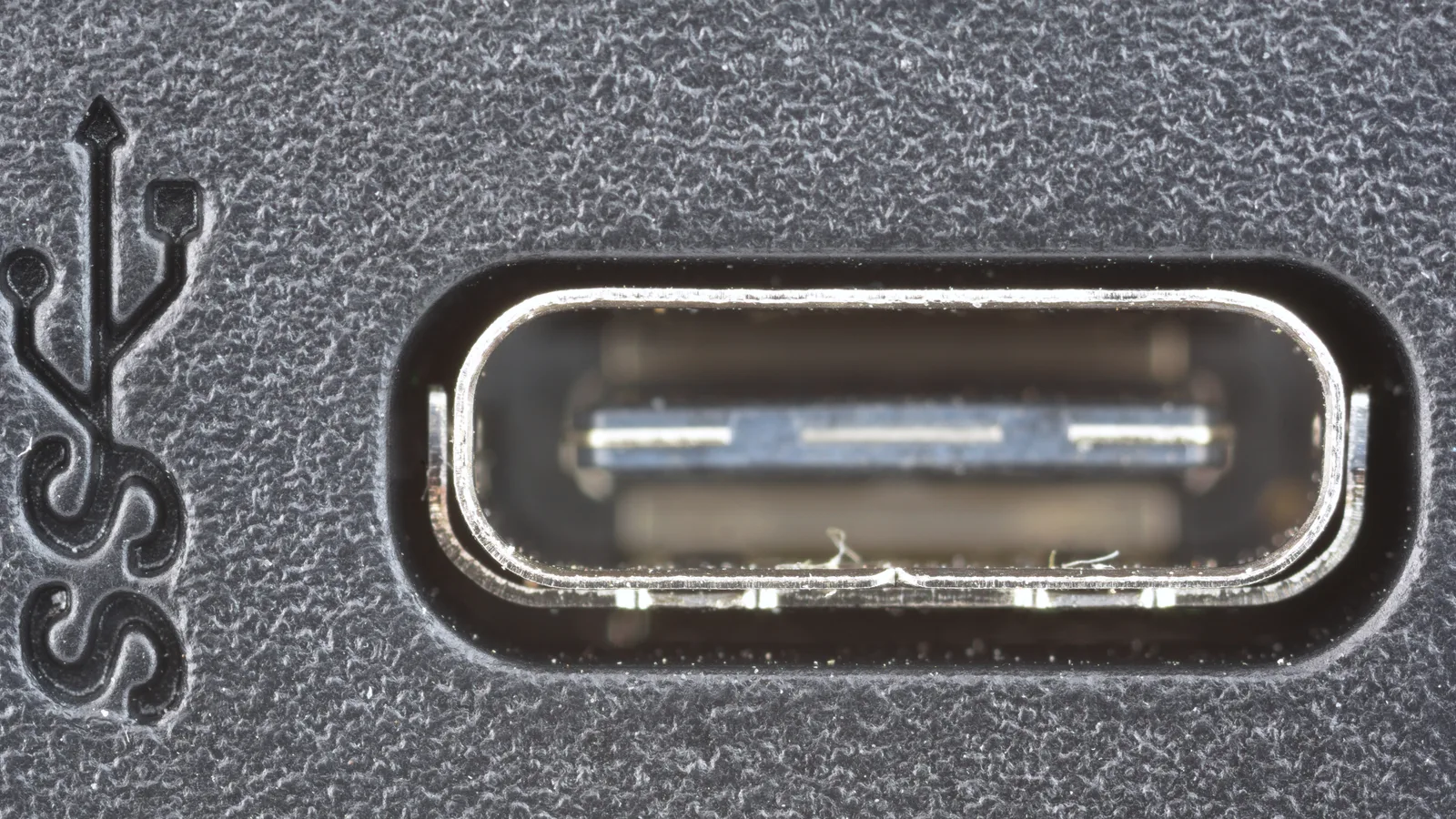
- The external monitor test: connect an external screen by HDMI or the USB-C port shown here. If the desktop appears there, the computer and graphics are fine and the fault is the internal panel, its cable or the backlight. If nothing shows even there, the problem is deeper — the motherboard or GPU.
- The torch test: in a dim room, shine a bright light at the black screen at an angle. If you can just make out a faint desktop, the panel is alive but its backlight has failed — often a cheaper repair than a whole new panel.
What the symptom is telling you
Match what you're seeing to the row below to know what to try next and whether it's likely a free fix or a bench repair.
| Symptom | What you see | Likely cause | What to try |
|---|---|---|---|
| Black but running | Fans spin, keyboard lights, no picture | Display asleep, wrong output, or a stuck state | Win+Ctrl+Shift+B, then Win+P, then a power drain |
| Faint image under a torch | A ghostly desktop visible only with a light at an angle | Backlight or its driver board has failed | Backlight or cable repair — the panel may be reused |
| External monitor works | Laptop screen blank, external screen shows the desktop | Internal panel, its ribbon cable or backlight | Reseat or replace the cable, then the panel if needed |
| Nothing anywhere | No picture on the laptop or an external monitor | Graphics chip, motherboard or power fault | Needs a technician — not a DIY fix |
| No lights at all | Completely dead: no LEDs, no fan, no sound | Charger, battery or board, not the screen | Check the charger and its LED, then get it serviced |
MacBook owners: the same idea, different keys
The Windows shortcuts above don't apply to macOS, but the approach carries over. Apple's own guidance: if the screen comes back when you press a key or click the trackpad, the Mac had simply gone to sleep. If it stays black, plug in the power adapter, unplug every other device, and let the battery charge to at least 10 percent. To force a restart, hold Command and Control while you press the power button. The external-monitor and torch tests below work the same on a Mac — and because we are an Apple Independent Repair Provider, a MacBook that fails them is something we can diagnose on the bench.
What forcing it on can't fix
If the picture never returns, the cause is hardware, and no shortcut reaches it. On the bench a black screen that won't force on usually comes down to one of these:
- A loose or pinched display cable behind the hinge — common after a knock, or a lid opened and closed thousands of times.
- A failed backlight or its driver board — the picture is there but unlit, exactly what the torch test reveals.
- A dead LCD or OLED panel — physically damaged or worn out, which no shortcut can wake.
- A graphics chip or motherboard fault — the case where even an external monitor stays black.
When to bring it to Esmond Service Centre in Singapore
If the external-monitor test points to the internal screen, or nothing you try brings the picture back, that's the point to let a technician take over. At Esmond Service Centre, the diagnosis is free and if we can't fix it you pay nothing, and every repair carries a 90-day warranty on the work and the parts we fitted, extendable with the optional Esmond Care plan. We work on Apple, Dell, HP, Lenovo, Asus, Acer, MSI and Razer laptops, and we're an Apple Independent Repair Provider and an MSI Authorised Service Provider, with workshops at 460 Alexandra Road and 24 Sin Ming Lane.
We've deliberately left a repair price off this guide, because a black screen can turn out to be anything from a free cable reseat to a full panel replacement — the only honest number is one quoted after we see your exact model. Bring the laptop in, tell us precisely when the screen went black and what you'd already tried, and let the bench confirm whether it's the panel, the cable, the backlight or the board.

Written by Esmond, Founder & CEO of Esmond Service Centre. He works from the repair bench where these black-screen laptops actually arrive, and writes each guide from the faults that come through the door rather than from a spec sheet.
Esmond Service Centre's experienced technicians can diagnose and fix it fast — free diagnostics, repairs from $65.