
📑 On this page
Laptop refurbishing is the process of breathing new life into an aging laptop through careful cleaning, repair, and upgrades. In other words, instead of discarding your slow or outdated laptop, you can refurbish it to restore performance and extend its useful lifespan. This approach not only saves you money but also reduces electronic waste. At Esmond Service Centre, our experienced technicians have years of experience refurbishing laptops for customers, so we understand what it takes to make a used laptop feel like new again. In this comprehensive guide, we’ll share professional insights and practical steps on laptop refurbishing. Read on to learn why refurbishing is a smart choice, how to do it correctly, and tips to keep your laptop running like new.
Why Refurbish a Laptop Instead of Buying New?
Refurbishing restores an aging laptop through deep cleaning, repair, and upgrades like an SSD or added RAM, making it a budget-friendly, eco-friendly alternative to buying new while reviving speed and reliability. At Esmond Service Centre, experienced technicians can handle the whole job with quality, compatible parts, or WhatsApp your model for guidance.
- Cost Savings: Upgrading and fixing your current laptop is far more budget-friendly than purchasing a new one. By refurbishing, you can improve your laptop’s speed and capabilities at a fraction of the cost of a replacement.
- Environmental Benefits: Laptop refurbishing is eco-friendly. Reusing your device and updating its components means one less piece of electronic waste. This helps reduce the environmental impact associated with manufacturing and disposing of electronics.
- Restored Performance: A thorough refurbish can make your laptop run significantly faster and more reliably. Cleaning out dust and swapping an old hard drive for a speedy SSD or adding more RAM can boost performance to feel like a new machine.
Essential Steps to Refurbish Your Laptop
Successful laptop refurbishing involves a few key steps. Follow these steps to get the best results:
- Backup Data & Inspect: Before making any changes, back up your important files. Then evaluate your laptop’s condition and identify what needs attention (e.g., slow performance, overheating, short battery life, etc.). This preparation ensures you know which refurbishing actions to take and safeguards your data.
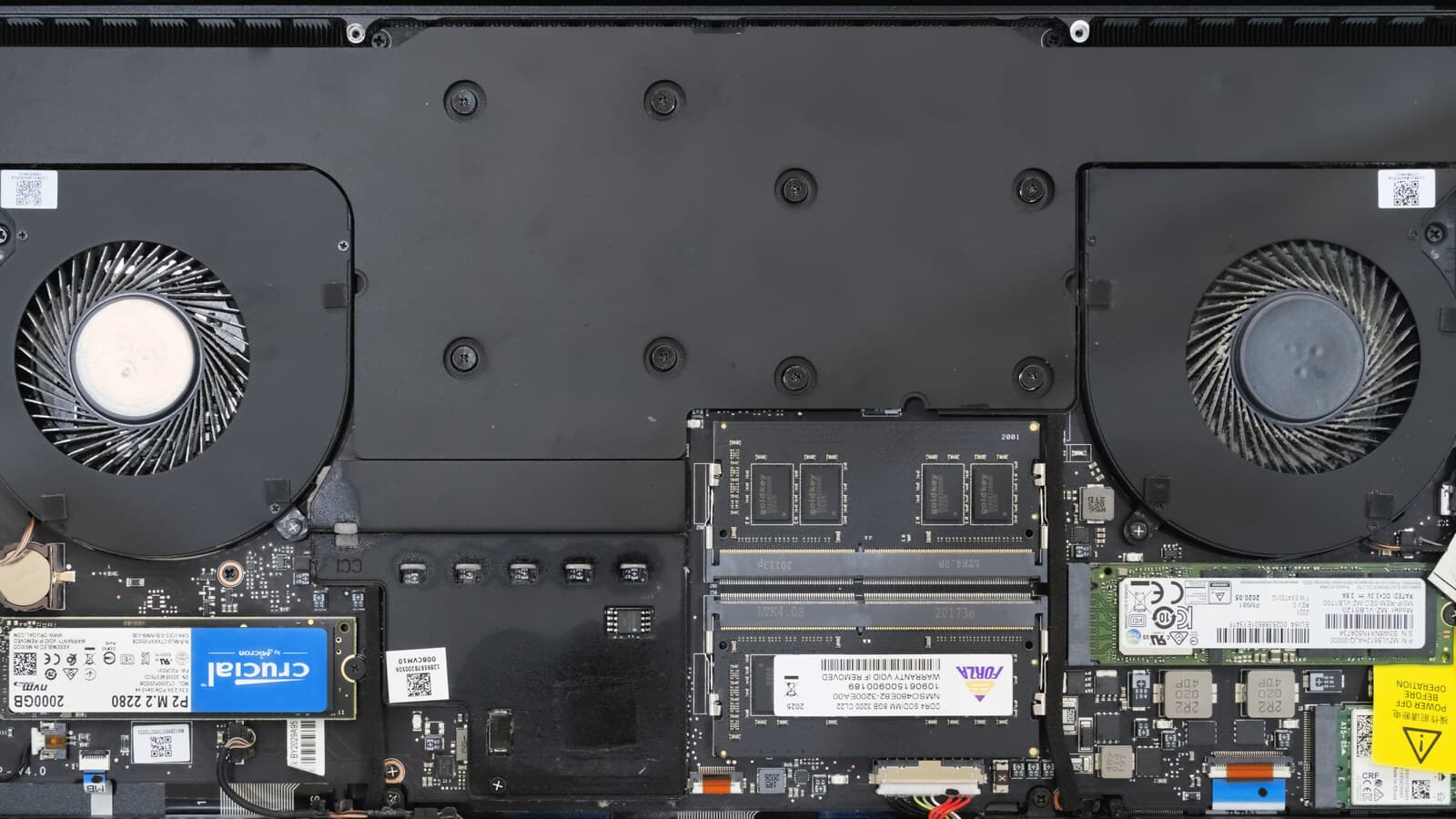
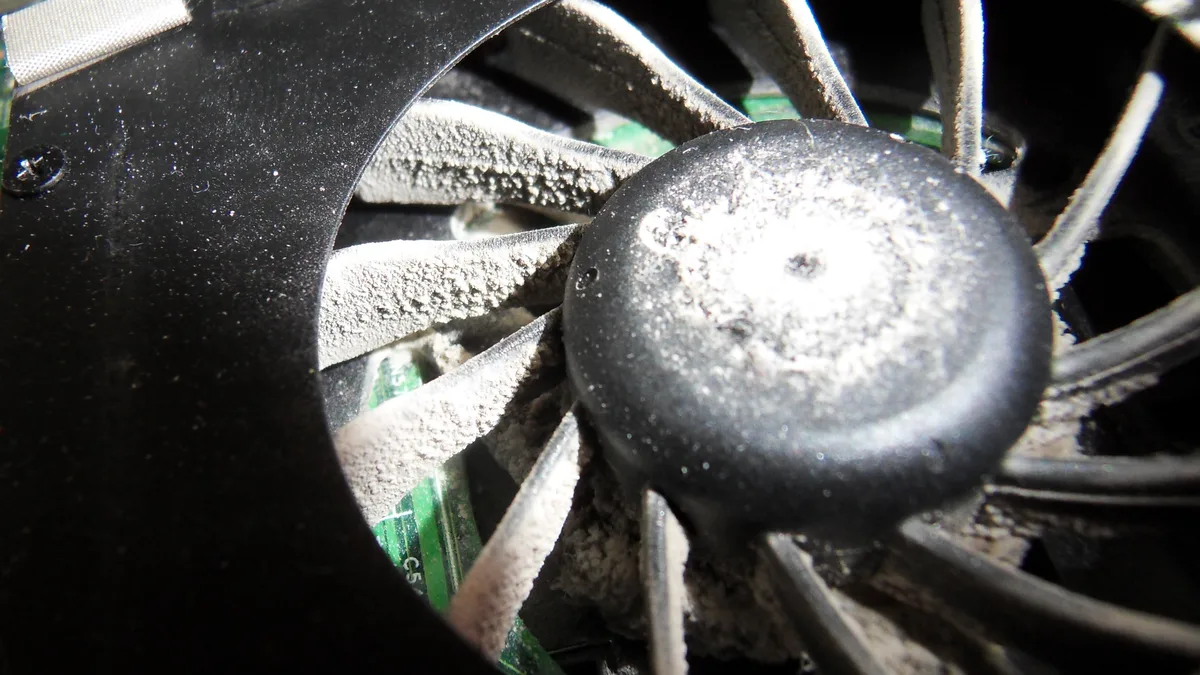
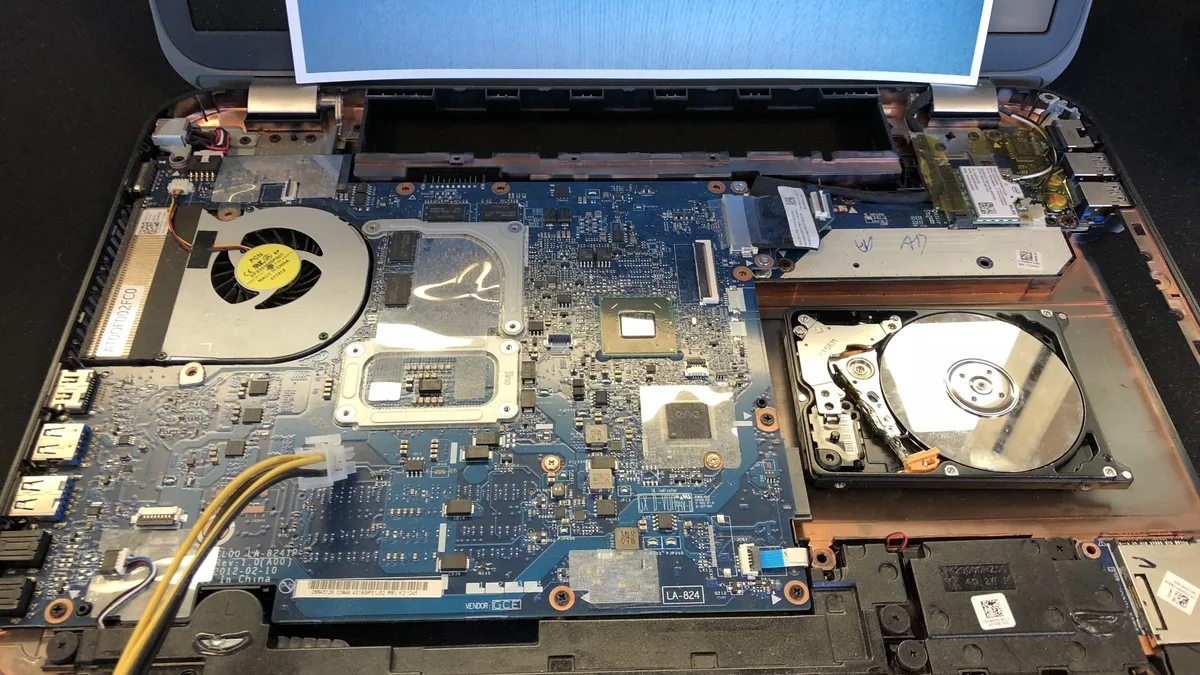
- Deep Clean the Laptop: Shut the laptop down, unplug the charger and — if the battery comes out — remove it before you touch anything else. Lenovo's own cleaning document (HT035676) says to turn the computer off and disconnect all power sources including the battery, and warns that isopropyl alcohol is flammable and must not be used while the system is on. With the machine off, wipe the keys with a lint-free cloth barely dampened with isopropyl alcohol, and the outer case with a lint-free cloth and a mild non-ammonia cleaner or plain water — Lenovo warns that solvents can peel the paint. For the screen use a 50-50 mix of isopropyl alcohol and water, and never spray liquid straight onto the display or the keyboard. Then open the bottom panel and blow dust out of the fans and vents with a can of compressed air — not an air compressor. If you're comfortable, also replace the old thermal paste on the CPU/GPU to improve cooling.
- Replace or Upgrade Hardware: With the machine still off, unplugged and its battery disconnected, address any worn-out components and consider beneficial upgrades. For example, if the battery no longer holds a charge, replace it with a new one. If the battery is swollen — the case bowing, the trackpad lifting — stop here and read When to Stop and Bring It In before you go any further. You can also give the laptop a big performance boost by adding more RAM or swapping in a Solid-State Drive (if it doesn't already have one). Make sure any new parts are compatible with your laptop model. By refreshing the hardware, you fix existing issues and extend the device's capabilities.
- Reinstall OS & Update Software: Finally, set up a fresh software environment. Reinstall your operating system (or reset it) to get rid of clutter and malware that accumulated over the years. After a fresh OS install, update it to the latest version and install all necessary drivers. Restore your backed-up files and install your essential apps. With a clean OS and updated software, your refurbished laptop will run as smoothly as possible.
Top Mistakes to Avoid When Refurbishing Your Laptop
Even with a solid plan, certain mistakes can undermine your laptop refurbishing efforts. Avoid these common pitfalls:
- Skipping the Backup: Failing to back up data before refurbishing can lead to irreversible loss. Always save important files to an external drive or cloud storage beforehand.
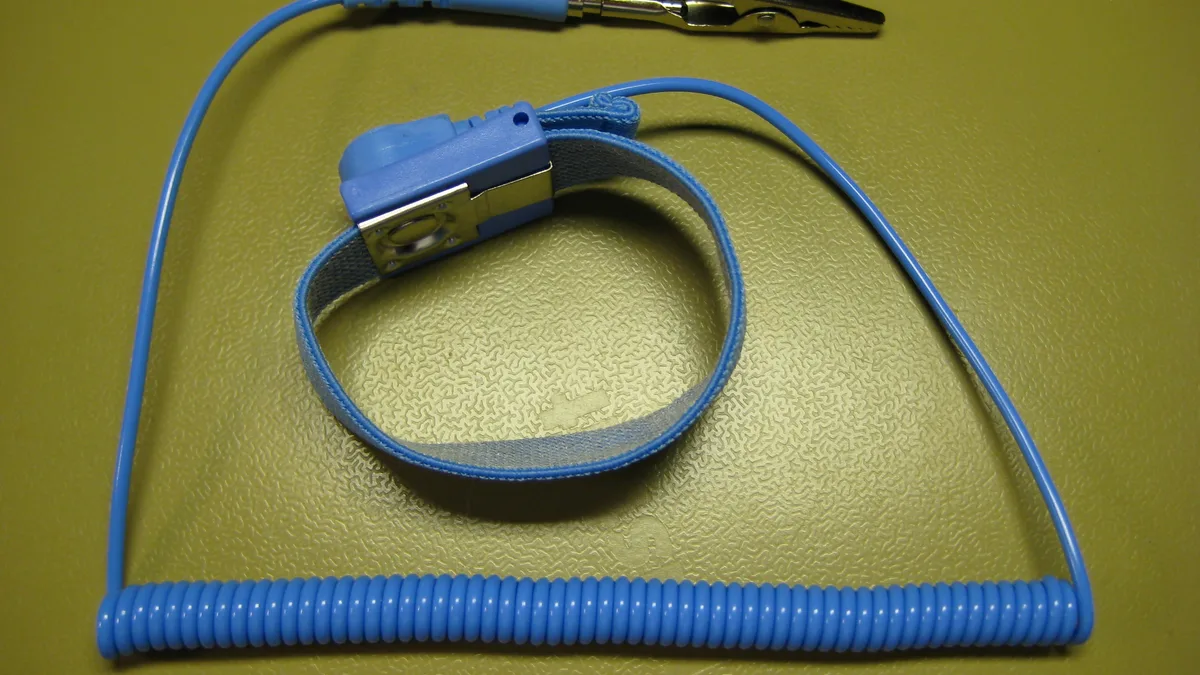
- Ignoring Static Precautions: Static electricity can damage sensitive components. Avoid working on carpet and consider wearing an anti-static wrist strap. At minimum, touch a metal surface frequently to discharge static before handling internal parts.
- Using Improper Tools or Rushing: Using the wrong screwdriver or prying tool can strip screws or crack the case. Likewise, rushing the disassembly/reassembly might cause you to damage a cable or cause you to miss a connection, so always use proper tools and take your time.
- Incompatible or Low-Quality Parts: If you install new components, make sure they are compatible and high quality. The wrong type of RAM or a low-quality battery can lead to more issues. Always double-check specifications and buy from reputable sources.
Tools and Components You’ll Need
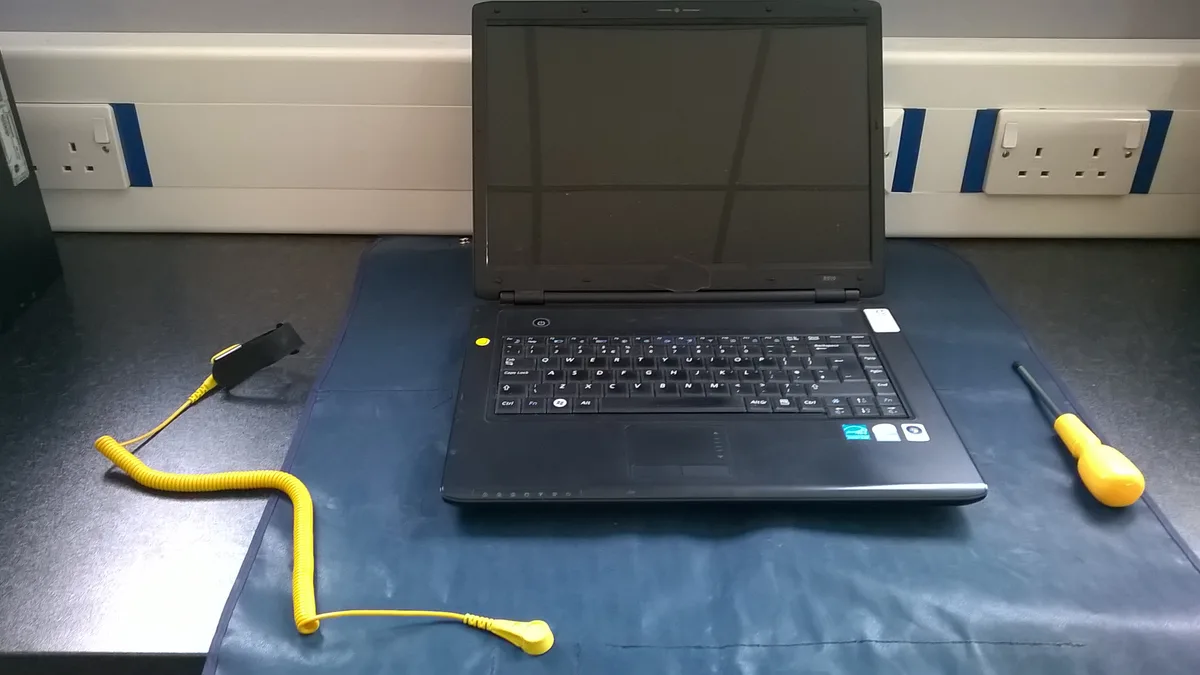
For a smooth laptop refurbishing process, gather the right tools and parts before you begin:
- Precision screwdrivers & pry tools: For removing laptop screws and opening the case safely.
- Cleaning supplies: A can of compressed air, a soft brush, isopropyl alcohol, and microfiber cloths to clean dust and grime.
- Anti-static gear: An anti-static wrist strap (or anti-static mat) to prevent electrostatic discharge to delicate components.
- Thermal paste: Fresh thermal compound for reapplying on the CPU/GPU if you’re cleaning the cooling system.
- Replacement parts: Any components you plan to swap in, such as a new battery, extra RAM sticks, or an SSD. Ensure these parts are compatible with your laptop model.
- OS reinstall media & backup drive: A USB installer for your operating system and an external drive for data backups.
Expert Tips for Maximizing Your Laptop’s Lifespan
After refurbishing, follow these expert tips to keep your laptop running well and extend its lifespan:
- Keep it cool (and clean): Heat is a laptop’s enemy, so always allow good airflow. Use your laptop on hard surfaces (not on beds or carpets that block vents). Every few months, gently clean the vents and fans to prevent dust buildup.
- Practice smart battery habits: To prolong battery health, avoid leaving the laptop plugged in at 100% all the time. Instead, unplug occasionally and let the charge cycle. If your laptop has an option to limit maximum charge (for example to 80%), use it. These good charging habits can add many extra recharge cycles to your battery’s life.
- Stay updated and organized: Keep your operating system and drivers up to date for optimal efficiency and security. Run reliable antivirus scans to keep the system clean. Additionally, uninstall unnecessary programs and delete junk files periodically.
When to Stop and Bring It In
Refurbishing fixes what is worn, dirty or too small. It will not fix liquid damage on the board, a cracked hinge that has torn the case, or a machine that will not power on at all — no amount of cleaning or extra RAM can repair a failed component. Stop, and bring it in, if any of these is true:
- The battery is swollen. The case bows, the trackpad lifts, or the machine rocks on a flat desk. Stop using it, do not press or puncture the cell, and bring it in.
- A screw is stripped, or the case will not separate. Forcing it cracks the plastic, and a replacement case costs more than the upgrade you were trying to fit.
- The machine has been wet. Do not power it on to "test" it — that is when the damage spreads.
- You have the panel off and cannot identify the memory or drive slot. The wrong module, or a drive pushed into the wrong connector, will not boot and can damage the socket.
The risk of getting it wrong is hard to undo. A static discharge from a carpet can kill a memory module with no visible sign of damage. Prying with the wrong tool cracks the case. Reinstalling the operating system before the backup has been checked overwrites the only copy of your files, and that is permanent — data loss is the one mistake on this page that money cannot reverse. Opening the machine can also void the warranty that is left on it.
If you would rather hand any of it over, the diagnosis at Esmond Service Centre is free and there is no fix, no fee. Fan cleaning and thermal repasting takes 30–45 minutes from $90; a laptop SSD upgrade takes 3–5 hours from $148; a RAM upgrade starts at $138; and a battery replacement is usually 30–45 minutes at $86–$186. Prices are before GST (9% is added at payment). Tell us your model and we will quote before we start.
Unlock Long-Term Value with Professional Laptop Refurbishing
Refurbishing your laptop is a cost-effective and eco-friendly way to give your device a new lease on life. By following the steps above, you can postpone the need for a new purchase and keep your trusted machine running well for years. Remember, if any part of the process feels overwhelming, professional laptop refurbishing services are available to help. At Esmond Service Centre, our technicians can handle everything from deep cleaning to component replacements, ensuring the job is done right. Whether you choose the DIY route or opt for professional assistance, the goal is the same – to maximize the value and lifespan of your tech. If you would rather not open the machine at all, our technicians can take the whole job — tell us the model and the diagnosis and the quote are free.
Get Started Today: Refurbish Your Laptop Like a Pro
Enjoyed this comprehensive refurbishment breakdown? Follow our Facebook page, LinkedIn profile or Instagram account for more expert insights and practical tips on cutting-edge technology. If you’re inspired to refurbish your laptop like a pro but would like some guidance, reach out to the friendly team at Esmond Service Centre. Our professionals can answer your questions or even handle the entire refurbishment for you with quality, compatible parts and expert care. We’re here to help you get the most from your laptop. Contact us today to get started!

Esmond Service Centre's experienced technicians can diagnose and fix it fast — free diagnostics, repairs from $65.