

📑 On this page
A MacBook that won't turn on: what's actually happening
Walk-in and WhatsApp customers in Singapore bring us the same worry: the MacBook was fine yesterday, today the power button does nothing. It is one of the more hopeful faults we see, because 'won't turn on' is rarely a dead machine. Far more often it is a flat or confused battery, a charger or cable that has quietly failed, a stalled power state that a forced restart clears, or a screen that is dark while the Mac underneath is running. This guide is written from those repairs: the free checks to run first, how the steps differ between Apple silicon and Intel MacBooks, and the smaller number of cases where the fault really is the battery, the charging circuit or the logic board.
First: no power, or power but no picture?
Before you try anything, work out which of two very different problems you have — it decides everything that follows. A MacBook with no power gives you nothing: no startup chime, no fan or hum, no keyboard backlight, no glow from the screen. A MacBook that has power but no picture does something — a fan spins, you hear the chime, the keys or Touch Bar light up — but the display stays black. Use these quick, harmless tests to place your own machine.
- Listen and feel. In a quiet room, press the power button and listen for a startup chime or fan, and feel for any vibration or warmth. Any sign of life means the Mac has power — the problem is more likely the screen or startup.
- The torch test. With the Mac on, shine a bright light at an angle across the screen. If you can see a very faint desktop or Apple logo, the Mac is running and the backlight has failed — a display fault, not a dead Mac.
- Check the keyboard backlight and Caps Lock. If the keys light up or the Caps Lock key toggles its light, the logic board is alive even when the screen is black.
- Watch the charger light. On a MagSafe charger, the light tells you something is flowing; if the charger shows nothing on several outlets, suspect the charger or cable before the Mac.
How to fix a MacBook that won't turn on: the free steps
Work through these in order. None of them can harm the Mac, and together they revive most MacBooks that are not actually broken. Keep the charger connected throughout, so a flat battery does not hide a good result.
- Check the power source first. Plug into a wall socket you know works, using the original or a known-good Apple charger and cable. Apple's own first step is to make sure the power cable is undamaged and plugged securely into the Mac and a working outlet.
- Inspect the cable and port. Look for fraying, bent pins or a loose fit. Gently clear lint or debris from a USB-C or MagSafe port with a wooden or plastic pick — never anything metal. A tired cable or a dirty port is one of the most common reasons a MacBook won't charge or turn on.
- Charge, then wait. A deeply flat battery can need 15 minutes or more on the charger before the Mac will respond at all. Leave it plugged in and come back to it.
- Unplug every accessory. Remove printers, drives, USB hubs, dongles and phones. Apple lists this directly: unplug all accessories, because a faulty peripheral can stop a Mac starting.
- Force-restart. Press and hold the power button (the Touch ID key on most modern MacBooks) for about 10 seconds, release, wait a few seconds, then press it once normally. Apple describes this exact step for a Mac that won't turn on.
- On Apple silicon, that long press also opens startup options. On M-series MacBooks, keep holding the power button until 'Loading startup options' appears, where you can reach Safe Mode and macOS Recovery — there is no separate SMC (the chip that controls power and fans) or NVRAM (the small memory that keeps settings) reset to do.
- On Intel, reset the SMC and NVRAM. Apple says resetting the system management controller can help only on Intel Macs. On a T2 or older Intel laptop, hold Control, Option and Shift with the power button as Apple describes, then power on; to reset NVRAM, turn the Mac on and immediately hold Option-Command-P-R.
- Try Safe Mode and Recovery. If the Mac powers on but will not finish starting, start in Safe Mode, or boot into macOS Recovery to run First Aid on the disk or reinstall macOS without erasing your files.
Know the limit before you spend. These free steps will not fix a swollen or dead battery, a damaged charging board, a failed power circuit or liquid corrosion on the logic board — those are hardware repairs, and no button combination will bring them back. If this does not work after a proper charge and a force-restart, stop and bring it in rather than keep trying: repeated forced power-ups on a liquid-damaged or electrically faulty board can cause permanent damage and data loss, turning a small repair into a dead logic board. Opening the MacBook yourself to swap or reset the battery can also void any remaining warranty. When the screen stays dark after these steps, when there is any sign of a spill, or when the battery looks swollen, that is when to stop and seek professional help.
Apple silicon vs Intel: the steps differ
Which steps apply depends on what is inside your MacBook. Apple silicon Macs (M1 and later) manage power themselves, so several of the old Intel resets simply do not exist on them. Match your machine to the right column — doing the Intel steps on an Apple silicon Mac just wastes time.
| Step | Apple silicon (M1–M4) | Intel MacBook |
|---|---|---|
| Force-restart | Hold power button ~10 seconds, then press again | Hold power button ~10 seconds, then press again |
| SMC reset | Not needed — just restart | Hold Control-Option-Shift + power, then power on |
| NVRAM reset | Done automatically; no key combination | Turn on and immediately hold Option-Command-P-R |
| Startup options / Safe Mode | Hold power until 'Loading startup options' | Hold Shift for Safe Mode |
| macOS Recovery | From the startup-options screen | Hold Command-R at power-on |
Symptom-to-cause quick reference
Use this to place your own MacBook. Match what you see to the most likely cause, whether it is safe to try yourself, and the typical next step. It is a starting point, not a diagnosis — a hands-on test confirms the real fault.
| What you see | Most likely cause | Safe to try yourself? | Typical next step |
|---|---|---|---|
| Nothing at all — no light, no fan, no chime | Flat battery, failed charger/cable or power circuit | Yes — charger, cable, 15-min charge, force-restart | Charging-port or board repair if still dead |
| Charges but still won't power on | Dead or swollen battery, or charging board | Partly — try a different charger | Battery or charging-board replacement |
| Fan or chime, warm, but screen black | Backlight or display fault; Mac is running | Yes — torch test, force-restart | Screen or backlight repair |
| Powers on, stuck at Apple logo or spinning | Startup-disk or macOS fault | Yes — Safe Mode, Recovery First Aid | macOS reinstall or disk repair |
| Question-mark folder on startup | Mac can't find a startup disk | Partly — reselect disk in Recovery | Disk or macOS repair |
| Was exposed to liquid, now won't start | Liquid corrosion on the board | No — do not keep powering it on | Professional liquid-damage service, quickly |

When it's a hardware fault
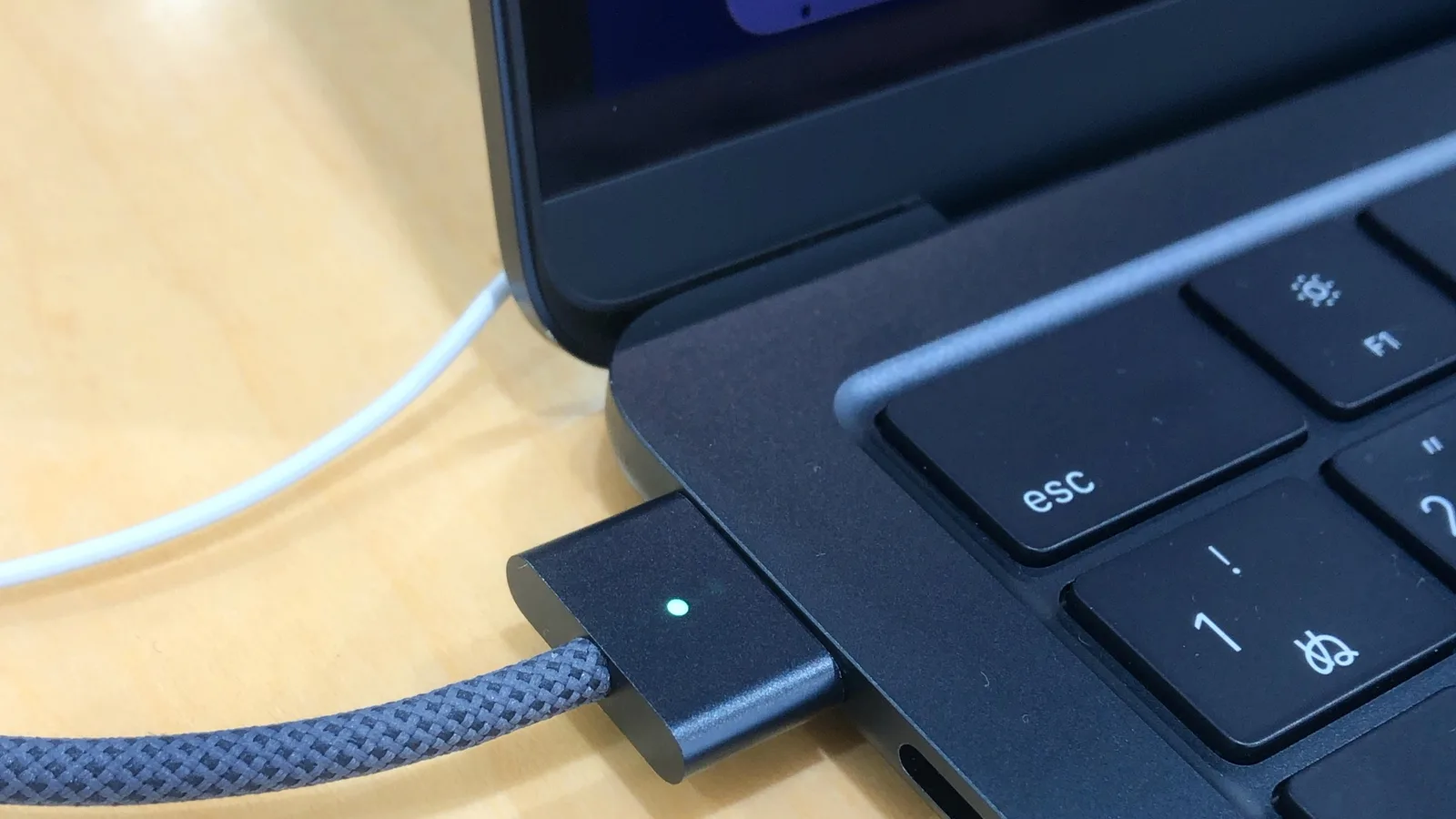
Sometimes the power source is good, the charger is fine and a force-restart changes nothing. Then the fault is usually inside the Mac's power path. Pictured above is a MacBook's magnetic charging connector seated in its port; everything from that port — the connector, the charging board behind it, the battery and the power circuit on the logic board — has to work for the Mac to turn on. When one link in that chain fails, the Mac can stay completely dark even with a charger plugged in.
- Dead or swollen battery: a battery that has failed or swelled can stop the Mac powering on, and a swollen cell is a safety issue — stop using it and keep it off charge.
- Charging board or USB-C/MagSafe port: a worn port or a failed charging board stops power reaching the battery and logic board, so the Mac neither charges nor starts.
- Power circuit on the logic board: a failed power rail or charging IC (a chip on the board) is a board-level fault; it needs diagnosis on a bench supply and microsoldering, not a parts swap.
- Liquid damage: even a small spill leaves corrosion that can short the power circuit days later. The sooner it is cleaned professionally, the more of the board survives.

What we do in the workshop
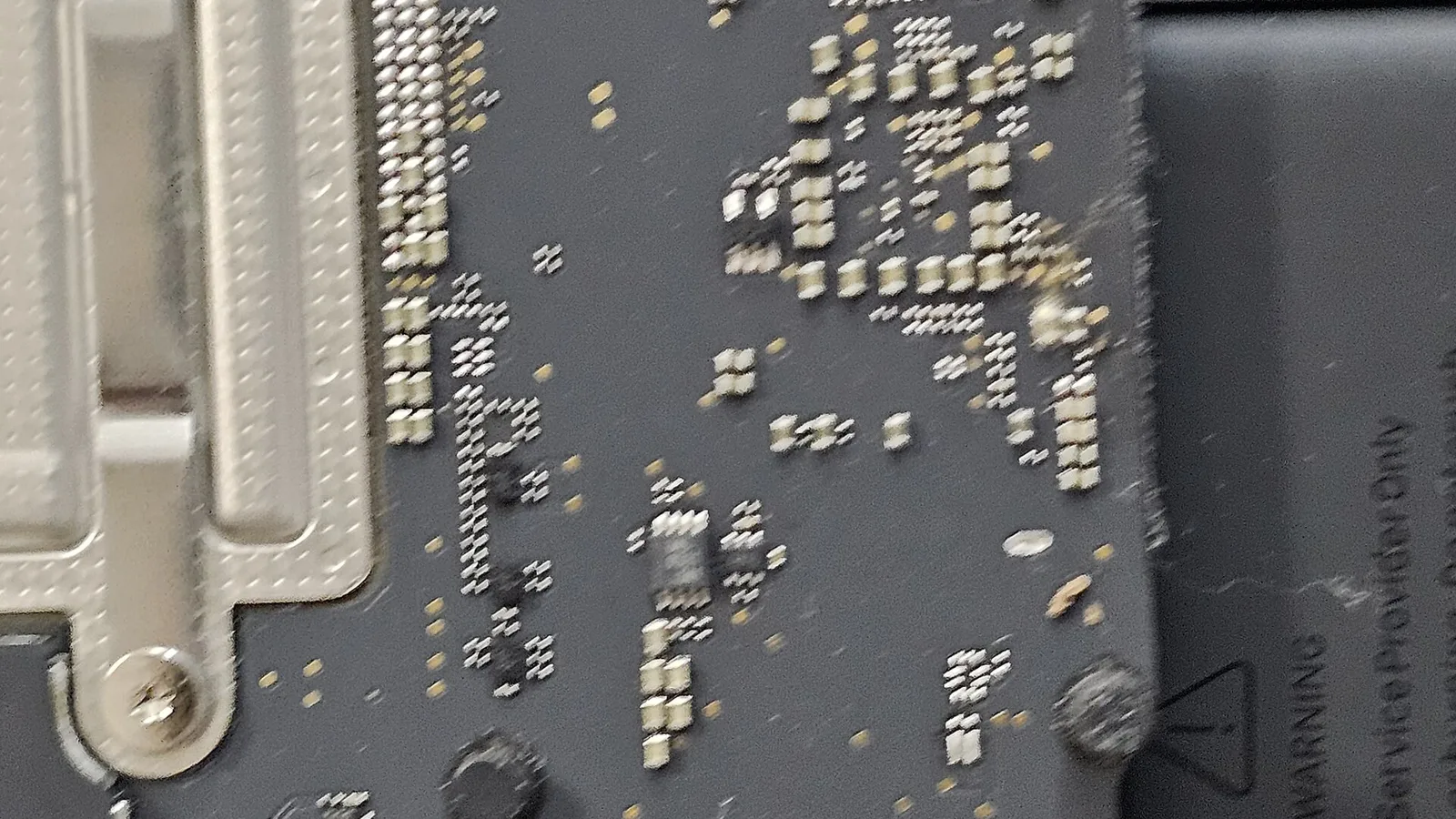
When to bring it in: if the free steps above do not wake the Mac, if it took a spill, or if the battery looks swollen, stop and let a professional take over. When a MacBook that won't turn on reaches our bench in Singapore, we do not guess. We measure what the board is actually drawing, trace the power from the port inward, and separate a flat battery from a charging fault from a board fault before any part is ordered.
- Power-path testing: we put the board on a bench supply and measure current draw, so we can tell a dead battery from a charging-board fault from a short on the logic board.
- Charging and battery service: where the fault is the battery, the port or the charging board, that is a part-level repair we handle, with the Mac tested end to end afterwards.
- Board-level work: a failed power rail or charging IC is microsoldering on the logic board — diagnosed first, so we never replace a part that was never the problem.
- Honest scoping: we deliberately do not quote a fixed price here — the cost depends on which of these it turns out to be, and we would rather diagnose first than guess.
Keeping a MacBook starting reliably
A few habits head off most won't-turn-on scares. Look after the charger and port, keep the battery healthy, and never keep forcing a Mac that has taken a spill.
- Use a genuine or reputable, correctly-rated charger and cable, and plug in directly rather than through a cheap hub.
- Keep the charging port clean and dry, and clear lint only with a wooden or plastic pick.
- Don't leave the battery flat for long stretches, and keep macOS updated so power management stays current.
- If the MacBook gets wet, switch it off, do not charge it, and bring it in quickly — time is what saves a liquid-damaged board.

Esmond Service Centre's experienced technicians can diagnose and fix it fast — free diagnostics, repairs from $65.