


📑 On this page
A MacBook Air with the wrong clock is more than an annoyance. A date that is days or years out breaks HTTPS certificates so secure sites refuse to load, throws off Calendar and Mail timestamps, and can stop you signing in to iCloud or the App Store. Getting it wrong carries a real cost: time-stamped backups can be saved under the wrong date and risk data loss, and a clock that keeps resetting often points to a failing battery that, left long enough, can swell and risk further damage. On our bench in Singapore we see two very different versions of this problem: one is a simple setting, and the other is the battery quietly telling you it is near the end. This guide walks through both, in the order we check them ourselves.

_-_3.jpg)
Why your MacBook Air shows the wrong date and time
Your Mac keeps time in two ways. While it is running and online, it checks a network time server and corrects itself automatically. While it is off, a tiny amount of power from the battery keeps an internal clock ticking so the time is still right when you open the lid. When the date is wrong, one of those two systems has stopped doing its job — either automatic sync is switched off or blocked, or the battery can no longer keep the clock alive between shutdowns.
- Automatic date and time is switched off, so the Mac never corrects itself.
- The Mac is offline, or a firewall blocks its network time server, so sync silently fails.
- The time zone is wrong, so the hour is off even though the date is right.
- Location Services is off, so the Mac cannot pick your time zone automatically.
- A Screen Time passcode or a work or school profile has locked the setting.
- The battery is so depleted it can no longer keep the clock running when the Mac is off, so the clock resets on every startup.
Fix 1: Set the date and time automatically (the one-minute fix)
This is where Apple tells you to start, and it fixes the large majority of cases. Make sure you are connected to Wi-Fi first — automatic time needs the internet to reach a time server. Then let the Mac set both the clock and the time zone for you.
- Open the Apple menu and choose System Settings (on macOS Monterey and earlier it is called System Preferences).
- Click General in the sidebar, then click Date & Time.
- Turn on “Set time and date automatically.” If it is greyed out, see Fix 4 below.
- If prompted, click Set and enter a network time server for your region, then click Done. The default, time.apple.com, is fine for Singapore.
- Turn on “Set time zone automatically using your current location.” For this to work, Location Services must be on.
If the time zone still will not set itself, check Location Services directly: open System Settings > Privacy & Security > Location Services, make sure it is on, then scroll to System Services and confirm “Setting Time Zone” is enabled. Apple is explicit that the Mac needs your location to choose the zone for you.
.jpg)
Fix 2: The clock resets after every shutdown — usually the battery
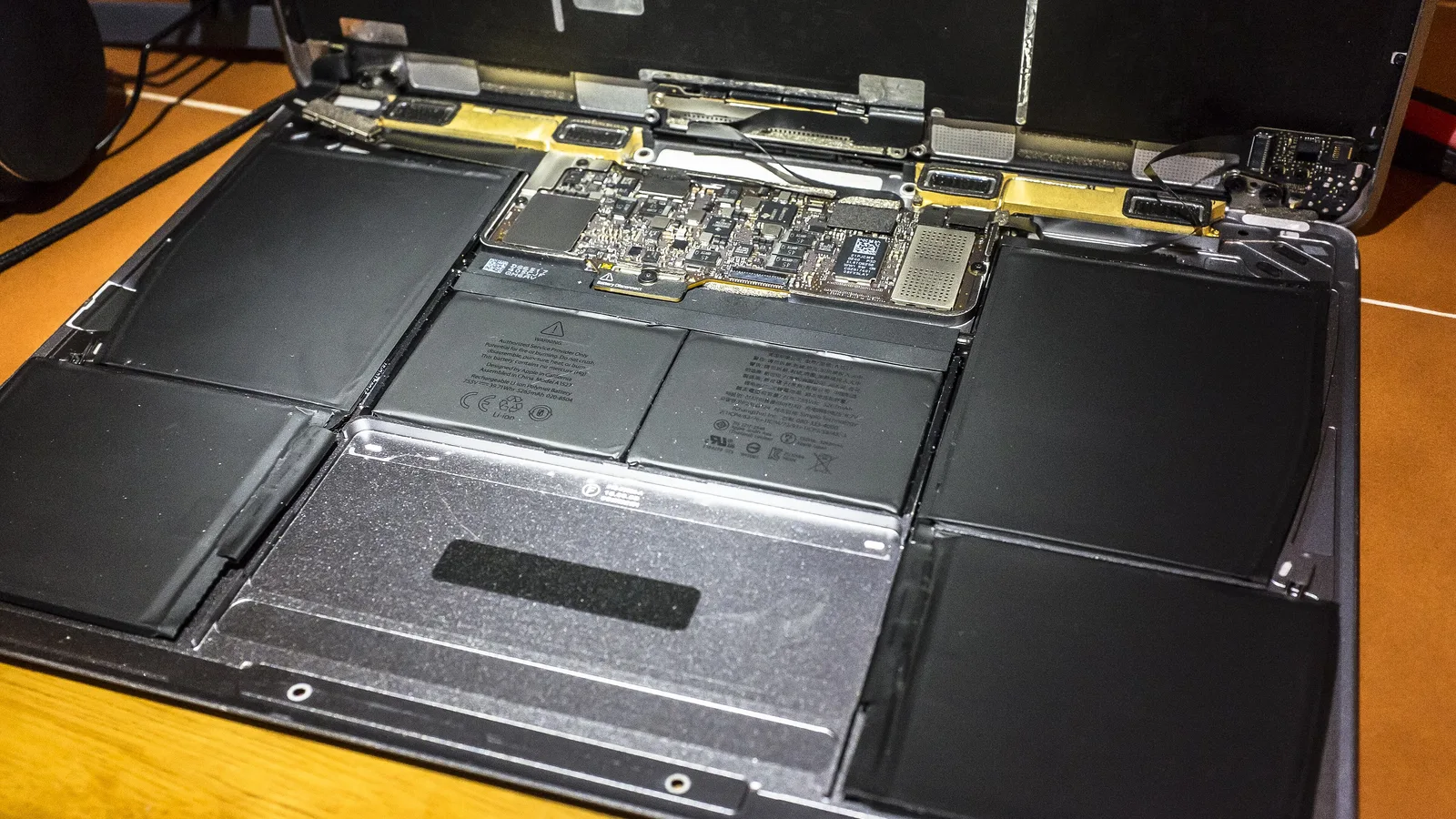
Here is the pattern we watch for on the bench: you fix the clock, it is perfect, then after the next full shutdown it jumps back to a wrong date — often 1 January of a year long past. That is rarely a software bug. A MacBook Air has no separate coin-cell clock battery; the internal real-time clock is kept alive by the main battery. When that battery is worn out or has been fully drained, there is nothing to power the clock while the Mac is off, so it resets every single time it loses power. The settings above fix a clock that has simply drifted, but they cannot fix this one: a clock that resets on a worn battery cannot be repaired by any software setting — the battery has to be replaced.
- The date resets only after a full shutdown or a drained battery, never while the Mac stays on.
- It jumps to the same wrong date every time — a classic sign the clock lost all power.
- Battery health is low, or the Mac shuts down suddenly before reaching 0%.
- You see “Service Recommended” under battery status in System Settings.
You can confirm battery health yourself: hold Option and click the Apple menu, choose System Information, then Power, and read the Cycle Count and Condition. If the condition is anything other than Normal, or the clock keeps resetting, the clock problem and the battery are the same problem — and a battery replacement is what actually fixes it.
Fix 3: Right date, wrong hour — fixing the time zone on a MacBook Air
If the date is correct but the time is a few hours out, the time zone is the culprit — common after travel, or when Location Services is off. You can let the Mac set it from your location, or type the city yourself.
- Go to Apple menu > System Settings > General > Date & Time.
- To set it automatically, turn on “Set time zone automatically using your current location” (Location Services must be on).
- To set it by hand, turn that option off, then type your city — for example Singapore — into the field at the bottom and press Return.
Fix 4: The date & time setting is greyed out
If the “Set time and date automatically” switch is dimmed and you cannot toggle it, something is restricting it. Apple names the usual culprits, and all of them are checkable in a minute.
- Screen Time: open System Settings > Screen Time > Content & Privacy; if it is on, a passcode may be locking the setting. Turn the restriction off or enter the passcode.
- A work or school profile: a company-managed (MDM) Mac can lock date and time centrally. Look under System Settings > General > Device Management; if a profile is listed, your IT administrator controls it.
- Location Services off: with it off, the automatic time-zone option stays greyed out. Turn it back on in Privacy & Security.
Fix 5: Set the time manually, or change the time server
If automatic sync simply will not hold — say you are permanently offline, or on a network that blocks Apple's server — you can set the clock by hand, or point the Mac at a different public time server.
- To set it manually: in Date & Time, turn off “Set time and date automatically,” click Set, enter the date and time, then click Set again.
- To change the time server: turn automatic time back on, click Set next to the server field, and enter another server such as time.google.com, then click Done.
- Remember that a manual time will drift and, on a weak battery, will be wiped on the next shutdown — so this is a stop-gap, not a cure.
Symptom, likely cause, and what to do
Match what you are seeing to the row below to jump to the right fix.
| Symptom | What you see | Likely cause | What to do |
|---|---|---|---|
| Wrong once | Date or time off after an update or a flat day, but corrects on its own | Automatic sync was off or briefly offline | Turn on Set automatically (Fix 1) |
| Resets every shutdown | Jumps to the same old date on every startup | Worn or fully drained battery | Check battery health; replace the battery (Fix 2) |
| Right date, wrong hour | Date fine, time off by whole hours | Wrong or un-set time zone | Set the time zone (Fix 3) |
| Can't change it | The automatic switch is greyed out | Screen Time, an MDM profile, or Location Services off | Clear the restriction (Fix 4) |
When to stop and bring your MacBook Air to a repair bench in Singapore
This is the point to stop the DIY and let a professional take over. If you have turned on automatic time, checked Location Services and cleared any Screen Time or MDM restriction and the clock is still wrong after every shutdown, the setting is no longer the problem — the battery is. That is a bench job: we run a battery health check, confirm the real-time clock is losing power, and replace the MacBook Air battery so the clock holds again. If the fault looks like deeper macOS corruption instead, macOS repair is the right path. We have deliberately left prices, turnaround times and warranty wording out of this guide, because they depend on your exact model and current parts supply — ask us for a quote for your specific MacBook Air rather than trusting a number from any web page.

Written by Esmond, Founder & CEO of Esmond Service Centre. He works from the repair bench where these MacBook Air clock and battery faults actually arrive, and writes each guide from what comes through the door rather than from a spec sheet.
Esmond Service Centre's experienced technicians can diagnose and fix it fast — free diagnostics, repairs from $65.